Best ReelSteady and Gyroflow Settings for Cheap Cameras
You Don't Need a $500 GoPro for Cinematic FPV
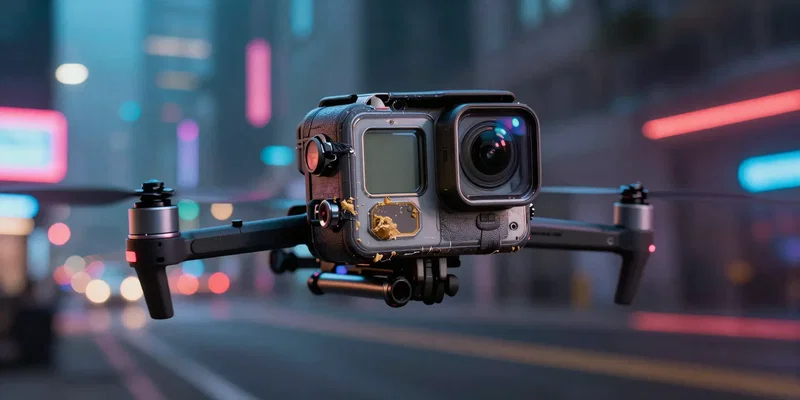
Let’s get one thing straight. You probably think you need the latest flagship action cam to get that buttery smooth FPV footage. You don't. Grab that cheap knockoff collecting dust in your drawer. The secret isn't the hardware. It's the post-processing. Sure, a premium sensor is nice. But when you're flying 60mph toward a concrete wall, risking an expensive camera feels like a bad joke. We're going to use software stabilization to make your budget rig look like a massive Hollywood production.
The ReelSteady Reality Check
ReelSteady is brilliant. I won't deny it. But it's also incredibly picky. It desperately wants native GoPro gyro data. If you're flying a Runcam, a Caddx, or some no-name Amazon special, ReelSteady will basically laugh in your face. Does that mean a Reelsteady budget workflow is impossible? Not exactly. You can hard-mount your camera and try syncing betaflight blackbox logs. It takes patience. A lot of it. Honestly, for cheap cameras, you're fighting an uphill battle here.
Enter Gyroflow (Your Real Best Friend)
This is where the magic happens. Gyroflow is open-source, free, and eats cheap camera footage for breakfast. It doesn't care if you're flying a potato. As long as you have gyro data, it works. Let's talk Gyroflow settings. First, load your video and sync your IMU data. If your cheap cam doesn't log gyro internally, strap an external logger to your drone. Tape it right next to the lens. The closer, the better.
Dialing in the Smoothness
Default settings are usually trash. Drop your smoothness slider down to about 0.3 or 0.4. Too much smoothness and your video turns into a floaty, robotic mess. We want to kill the high-frequency vibrations from your cheap motors. We do not want to erase the actual dynamic movement of the drone. Check the "Dynamic Zoom" box. This prevents those ugly black borders from dancing around the edges of your screen when you hit a sharp roll.
Nailing the Synchronization
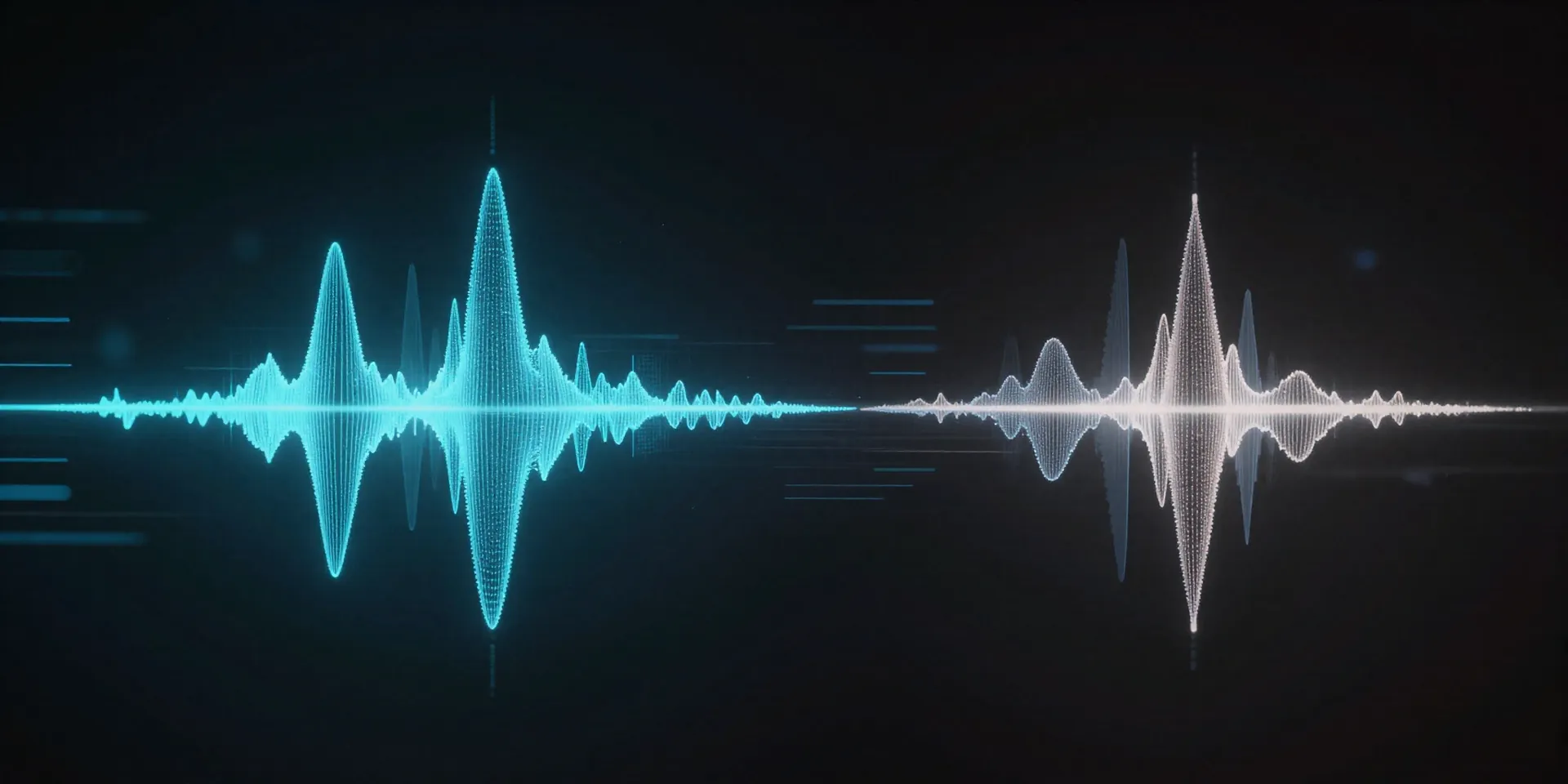
Bad sync ruins everything. If your footage looks like jelly, your gyro offset is wrong. Hit the "Autosync" button. Wait for it to analyze the visual motion against the data. Sometimes it fails. When it does, find a distinct hit or twitch in the footage. Manually align that exact frame with the spike on the gyro graph. It takes three seconds once you know what to look for.
The FOV Trap

Cheap cameras have terrible lens distortions. Select your exact lens profile in Gyroflow. If yours isn't listed, calibrate it yourself. Print out the checkerboard, wave it in front of the camera, and let the software map the distortion. Then export using h.265 at a high bitrate. Your raw footage probably looked like a shaky, pixelated disaster. The final output won't. You just saved yourself hundreds of bucks.